
 English
 العربية

Apple has quietly continued to improve its AirPods Pro headphones through frequent software updates that have modified noise cancellation and sound quality. Several weeks ago, Apple announced a pair of new features for its AirPods Pro, namely automatic switching and spatial audio.
Apple rarely provides details or comments on changes that come in every version of software updates for its headphones, and there is no way to manually install the latest update for AirPods and AirPods Pro, and the update starts in the background at some point while you are using them! But this has changed now as mentioned.
Auto Switch is the simpler feature, and it's likely to make a bigger difference in your daily use of AirPods Pro and regular AirPods as well. Without you needing to do anything,
The headphones will automatically switch between iPhone, iPad, and Mac devices when you start using one.
This switching happens instantly, you can listen to music on your phone, pause it, grab the iPad, and start playing a video, and you will find the AirPods Pro provide you with this sound.
Spatial audio feature on AirPods Pro
Then there is the exclusive "spatial audio" feature of AirPods Pro. With this feature, Apple is trying to add an immersive surround sound experience to two headphones. Instead of hearing everything in stereo, as usual, you will actually feel right in the middle of the action when you play content in an app that supports spatial audio.

There are quite a few streaming services that support this feature yet, including Apple TV, Disney Plus, and HBO Max, but Netflix and Amazon Prime Video are yet to be supported.
Apple says it uses algorithms to convert surround sound (5.1, 7.1, or Dolby Atmos) into spatial sound, and then applies directional sound filters and adjusts the frequencies vector to each ear to achieve the effect of audio immersion.
The earphones won't rival the movie-watching experience with Atmos' high-end home theater system, for sure, but as the name says, the spatial sound makes everything feel more spacious and open. Sure, the directional surround effects are cool, but the wide sound field also pays off hugely with clarity of dialogue and natural-person voices.
The speech stands out amid the effects and the music without any problems, which is what you cannot always say about the stereo sound, and even if the end result is not very strong, the spatial sound makes watching movies with AirPods Pro much better and clearly 3D.
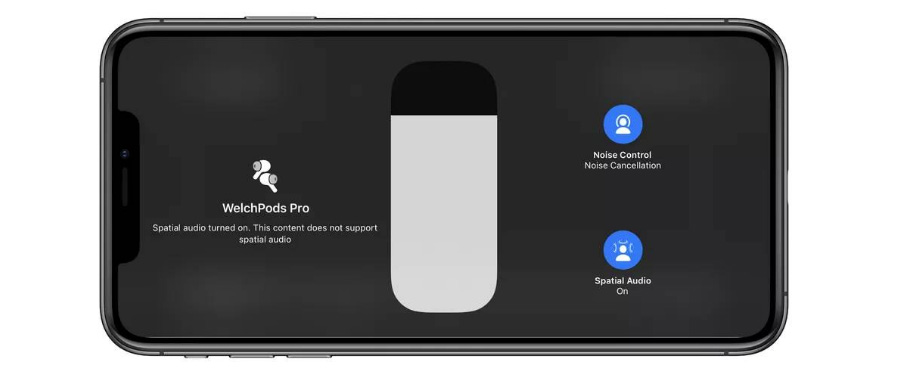
The most impressive aspect of spatial audio is how it keeps the sound steady in place and fools you into thinking that the audio is actually coming from your iPhone or iPad as you look at a TV screen. When you turn your head left or right, the main sound channel remains stationary in front of you.
Apple does this by comparing motion data from the sensors in your device with the gyroscope and accelerometer inside the distinctive AirPods Pro. This is how you find out if you are moving your head or if you are raising or lowering the iPad. When turning from side to side, you'll still hear some mix around each ear.
What do you need to run the spatial audio feature?
This feature specifically requires AirPods Pro, as it does not work with standard AirPods or any Beats headphones, although it may work with future releases.
Spatial Audio works with iPhone 7 and later. For iPad, you will need at least a 12.9-inch iPad Pro (3rd generation), 11-inch iPad Pro, iPad Air (3rd generation), iPad (6th generation), iPad Mini (5th generation), or later.
You must update the OS to at least iOS 14 or iPadOS 14. Finally, you will also need audiovisual content from a supported application, as this feature does not work in all applications and with all videos. The content you watch must have at least 5.1 surround sounds to work, and with standard stereo sound; you won't notice any difference.
How to play spatial audio on AirPods Pro

Take the AirPods Pro out of its case and put it in your ears.
On your iPhone or iPad, head to Settings > Bluetooth. Press the "i" button to the right of your AirPods.
Scroll down on this page and look for the "Spatial Audio" option - if you don't see it, you may need to update your AirPods.
To enable the "Spatial audio" option, then switch to the right will be green, and if not, tap the switch to turn it on.
To test Spatial Audio, click on the "See & Hear How It Works" option.
Click on the "Stereo Audio" and "Spatial Audio" options here to compare how each looks. If you want to use spatial audio, click on “Turn On for Supported Videos”. If you click on “Now,” the spatial audio will be disabled.